🌳 Our Family Tree — how to use it
www.thefamilytreebuilder.org · private to our family · works on any phone, tablet or computer
1Getting in
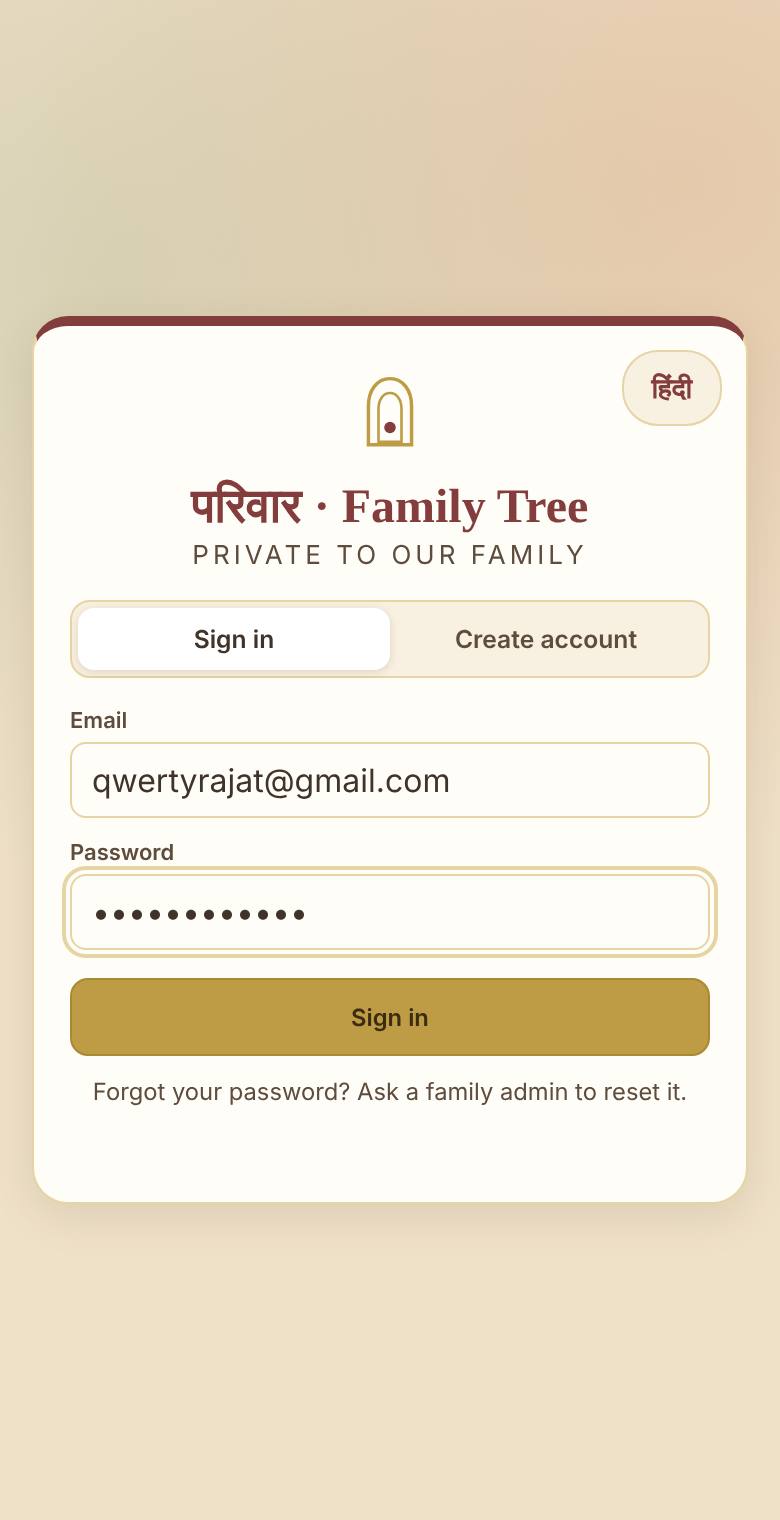
- Open the link (or scan the QR code) you were sent.
- Type your email. You'll get an email with a 6-digit code — type it in. This is the security gate.
- The first time, tap Create account, enter your name and choose a password.
- A family admin approves you — then the tree opens.
After that you stay signed in for months on that phone or computer.
2The buttons at the top
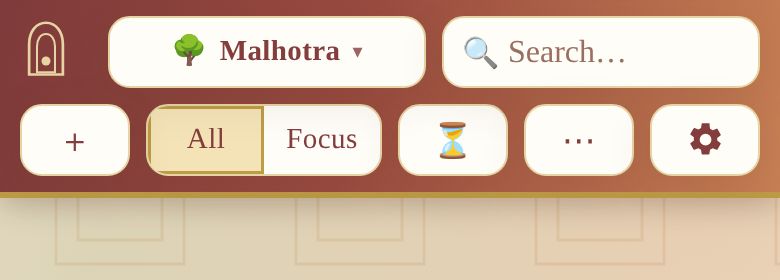
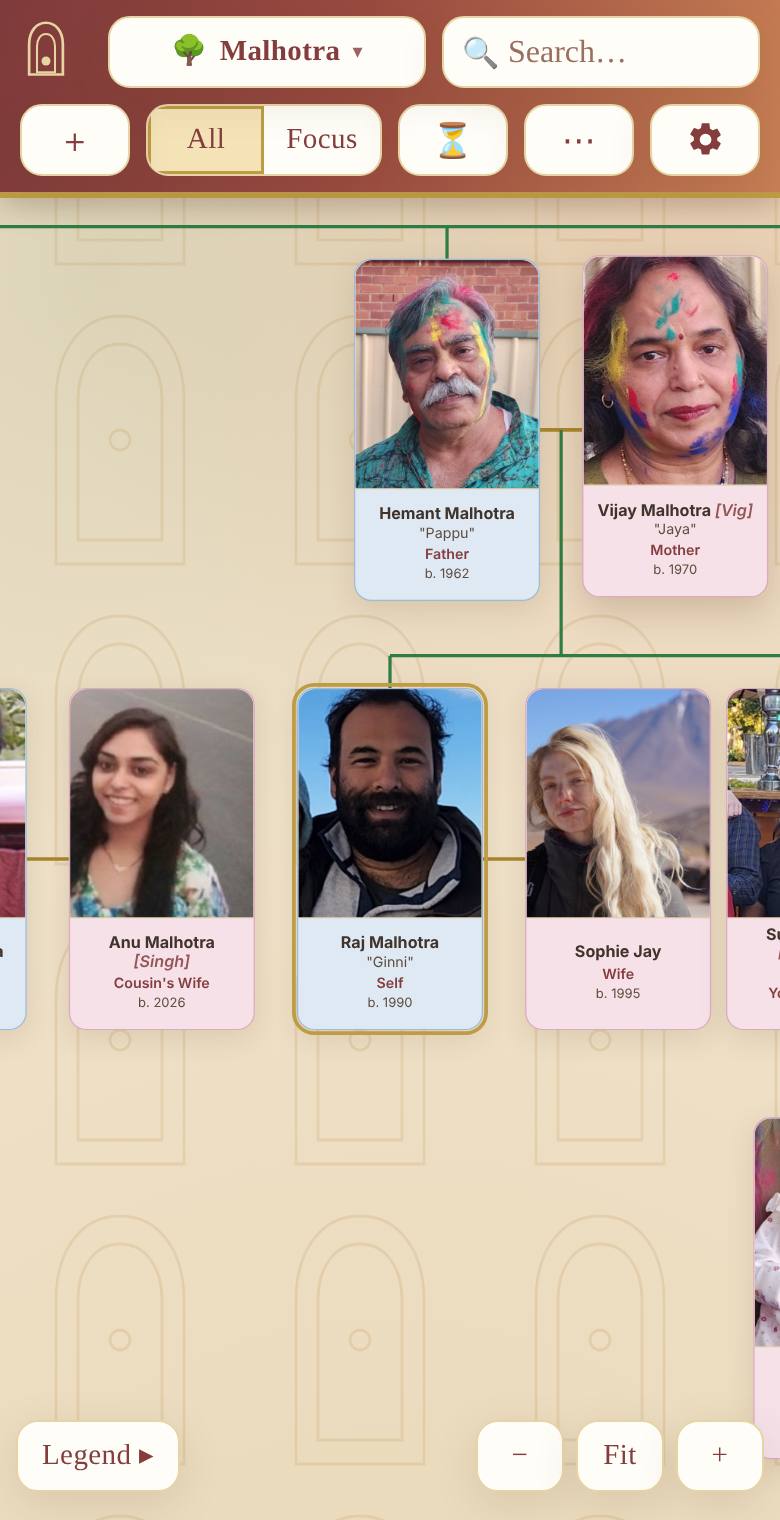
| 🌳 | Family name — tap to switch to another family you belong to. |
| 🔍 | Find someone — type a name, nickname or relation (e.g. "Chacha"). |
| + | Add — add a person or a relationship. |
| All · Focus | All shows the whole family. Focus shows a person's bloodline — their parents, grandparents and further back, even from other families (tagged 🌳). Tap an ancestor to follow their line. |
| ⏳ | Timeline — watch the family grow year by year. |
| ⋯ | More — relationship names (Western: Father, Uncle · Indian: Pita-ji, Chacha-ji), Family stories, this guide, downloads. |
| ⚙️ | Settings — text size, language, your name and password, invites. |
3Finding someone
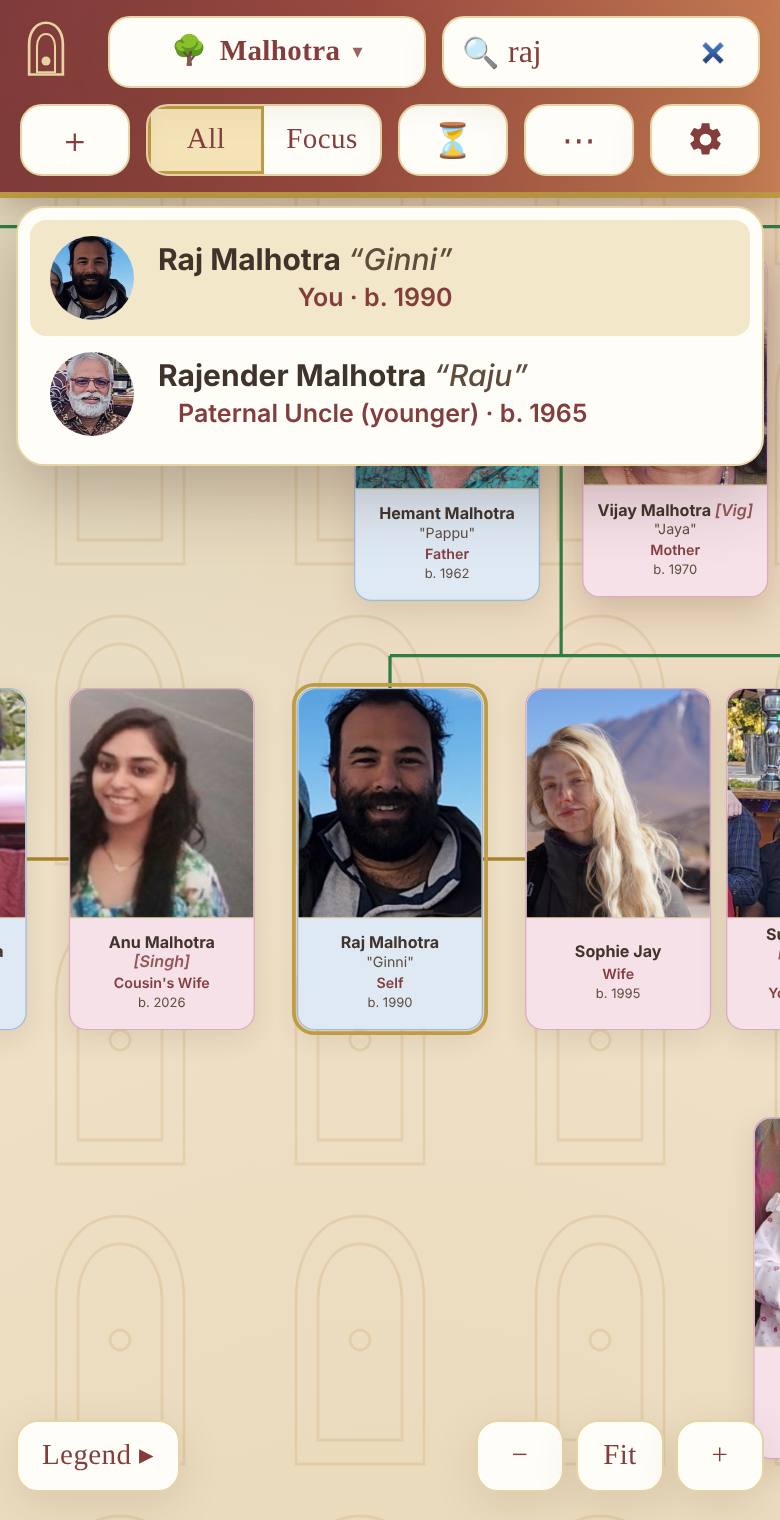
- Tap the 🔍 Find someone box.
- Type part of a name — "raj", a nickname — "Pappu", or a relation — "Nani".
- Tap the right person. The tree moves to them and their card flashes.
You can also move around the tree with one finger, and zoom with two fingers or the − Fit + buttons at the bottom.
4Looking at a person
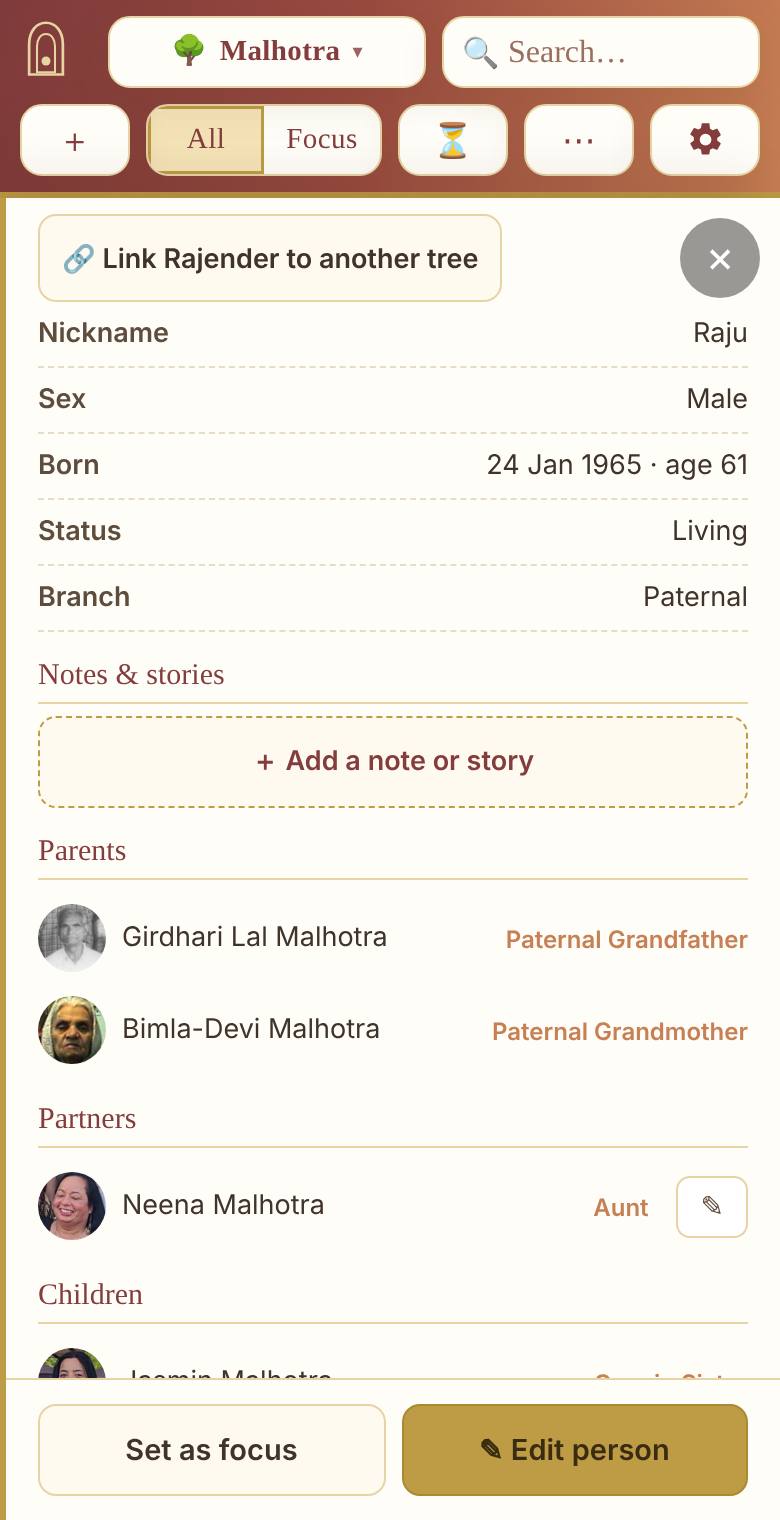
- Tap anyone's card to see their photos and details. Swipe or tap the small pictures to see more photos.
- Notes & stories — a life journal for each person. Tap + Add a note or story: write it, record your voice (red button to start and stop) and add photos, then Save. Tap any story to read or listen to it.
- Tap a parent, child or partner in the list to go to them.
- ✎ Edit person to fix details or tap 📷 Add photos — then choose Take a photo or Choose from your photos.
5Adding someone
- Tap + Add → Person.
- Type their name (the only thing you must fill in). Add a birthday and photo if you have them.
- Under Place on the tree, choose how they're related — e.g. Child of… and pick the parent.
- Tap Save person.
6Made a mistake? Undo it
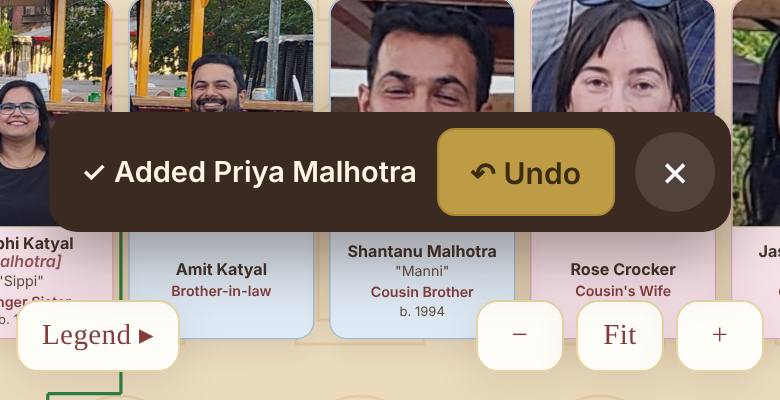
After every change a dark bar appears at the bottom for 15 seconds. Tap ↶ Undo to put things back exactly as they were.
Everyone's changes are also backed up every week, so nothing can be lost for good.
7Bigger text and Hindi
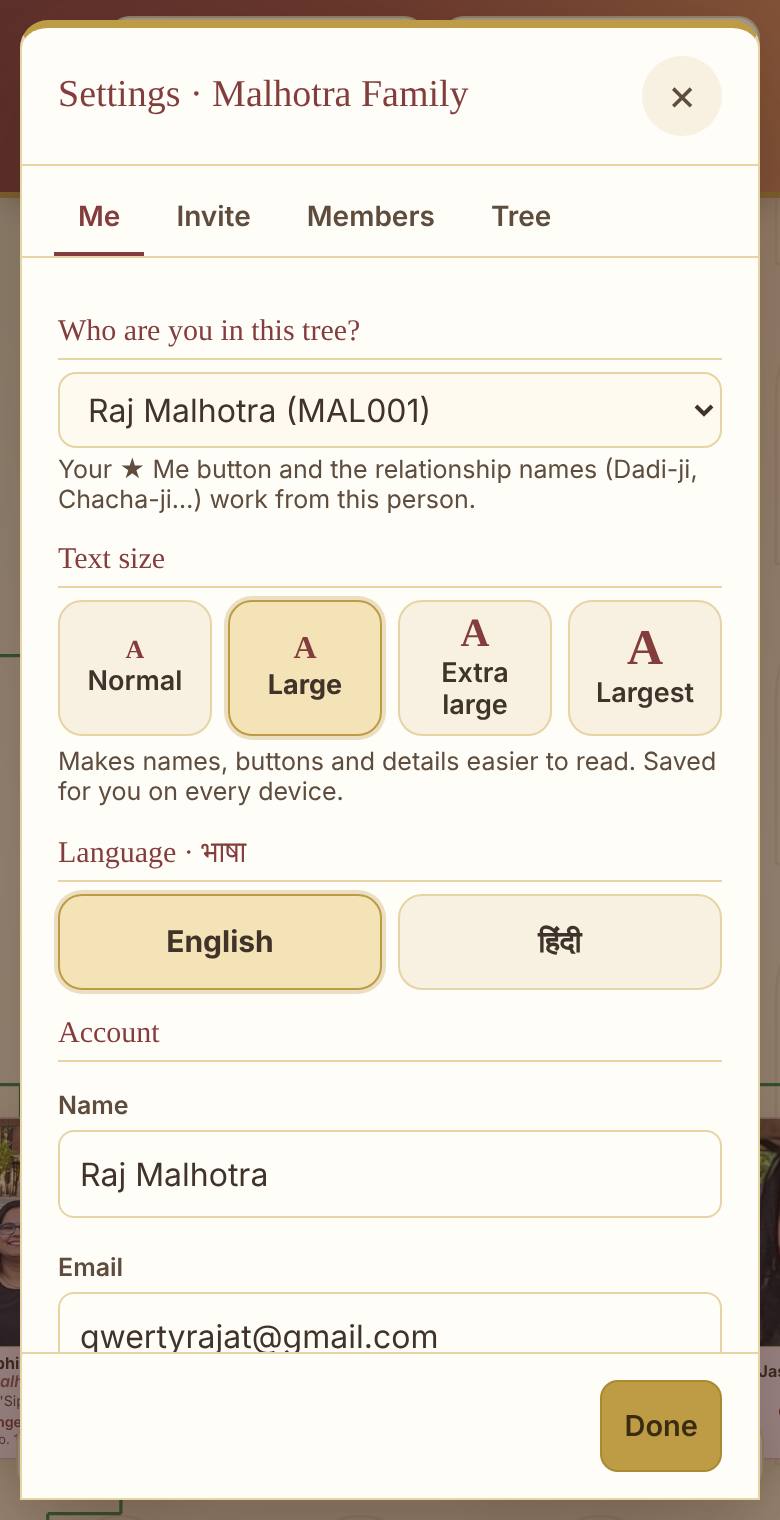
- Tap ⚙ Settings.
- Under Text size choose Large, Extra large or Largest.
- Under Language · भाषा choose हिंदी for Hindi buttons and relationship names.
Your choices are remembered on every phone and computer you use.
8Birthdays and anniversaries
When you open the tree, a note at the top shows any 🎂 birthdays, 💐 wedding anniversaries and 🪔 remembrance days this week. Tap a name to go to that person, or × to hide the note for today.
🌳 हमारा परिवार वृक्ष — उपयोग कैसे करें
www.thefamilytreebuilder.org · सिर्फ़ हमारे परिवार के लिए · किसी भी फ़ोन, टैबलेट या कंप्यूटर पर
1अंदर कैसे आएँ
- आपको भेजा गया लिंक खोलें (या QR कोड स्कैन करें)।
- अपना ईमेल लिखें। ईमेल पर 6 अंकों का कोड आएगा — उसे लिखें। यह सुरक्षा के लिए है।
- पहली बार खाता बनाएँ दबाएँ, अपना नाम लिखें और पासवर्ड चुनें।
- परिवार के एडमिन मंज़ूरी देंगे — फिर वृक्ष खुल जाएगा।
उसके बाद उस फ़ोन या कंप्यूटर पर आप महीनों तक साइन इन रहेंगे।
2ऊपर के बटन
| 🌳 | परिवार का नाम — दूसरे परिवार में जाने के लिए दबाएँ। |
| 🔍 | किसी को खोजें — नाम, उपनाम या रिश्ता लिखें (जैसे "Chacha")। |
| + | जोड़ें — नया व्यक्ति या रिश्ता जोड़ें। |
| सभी · केंद्र | सभी पूरा परिवार दिखाता है। केंद्र किसी व्यक्ति की वंश-रेखा दिखाता है — माता-पिता, दादा-दादी, नाना-नानी और उनसे पहले, दूसरे परिवारों से भी (🌳)। |
| ⏳ | समयरेखा — साल दर साल परिवार को बढ़ते देखें। |
| ⋯ | और — रिश्तों के नाम (पश्चिमी या भारतीय), परिवार की कहानियाँ, यह गाइड, डाउनलोड। |
| ⚙️ | सेटिंग्स — अक्षरों का आकार, भाषा, नाम और पासवर्ड, आमंत्रण। |
3किसी को खोजना
- 🔍 किसी को खोजें पर दबाएँ।
- नाम का हिस्सा लिखें — "raj", उपनाम — "Pappu", या रिश्ता — "Nani"।
- सही व्यक्ति पर दबाएँ। वृक्ष उन तक पहुँच जाएगा और उनका कार्ड चमकेगा।
एक उँगली से वृक्ष को खिसकाएँ, दो उँगलियों से या नीचे − पूरा देखें + बटनों से ज़ूम करें।
4किसी व्यक्ति को देखना
- किसी के कार्ड पर दबाएँ — उनकी फ़ोटो और जानकारी दिखेगी।
- यादें और कहानियाँ — हर व्यक्ति की जीवन-डायरी। + याद या कहानी जोड़ें दबाएँ: लिखें, अपनी आवाज़ रिकॉर्ड करें (लाल बटन) और फ़ोटो जोड़ें, फिर सहेजें।
- माता-पिता, संतान या जीवनसाथी के नाम पर दबाकर उन तक जाएँ।
- ✎ बदलें से जानकारी ठीक करें या 📷 फ़ोटो जोड़ें दबाएँ — फिर फ़ोटो खींचें या अपनी फ़ोटो में से चुनें।
5किसी को जोड़ना
- + जोड़ें → व्यक्ति दबाएँ।
- उनका नाम लिखें (सिर्फ़ यही ज़रूरी है)। जन्मदिन और फ़ोटो हो तो वह भी जोड़ें।
- वृक्ष में कहाँ में रिश्ता चुनें — जैसे की संतान… और माता/पिता चुनें।
- व्यक्ति सहेजें दबाएँ।
6गलती हो गई? वापस लें
हर बदलाव के बाद नीचे 15 सेकंड के लिए एक पट्टी दिखती है। ↶ वापस लें दबाएँ — सब पहले जैसा हो जाएगा।
सबके बदलावों का हर हफ़्ते बैकअप भी होता है, इसलिए कुछ हमेशा के लिए नहीं खोता।
7बड़े अक्षर और हिंदी
- ⚙ सेटिंग्स दबाएँ।
- अक्षरों का आकार में बड़ा, बहुत बड़ा या सबसे बड़ा चुनें।
- भाषा में हिंदी चुनें — बटन और रिश्तों के नाम हिंदी में दिखेंगे।
आपकी पसंद हर फ़ोन और कंप्यूटर पर याद रहेगी।
8जन्मदिन और सालगिरह
वृक्ष खोलने पर ऊपर इस हफ़्ते के 🎂 जन्मदिन, 💐 शादी की सालगिरह और 🪔 पुण्यतिथि दिखते हैं। नाम पर दबाकर उन तक जाएँ, या × से आज के लिए छिपाएँ।